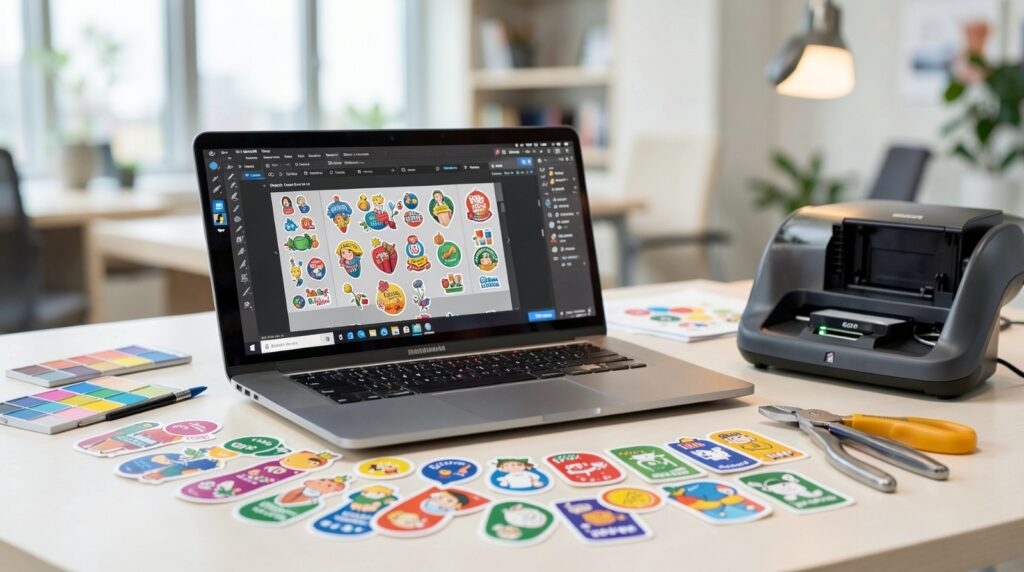
Stickers are easy to underestimate. A design that seems fine on screen can turn unreadable once it’s shrunk to two inches, trimmed to shape, and stuck on a bottle or laptop. That’s why sticker projects benefit from a simple production mindset: decide the size first, protect the edges, and export in a way that doesn’t soften text.
This guide is for beginners who want a fast workflow, plus experienced makers who want a repeatable checklist. The steps are organized around decisions and checkpoints—size, cut style, readability, and export stability—so you can make stickers quickly without guessing.
Sticker makers differ in the parts that matter for print: how they handle dimensions, whether they keep your layout stable when you swap text, and how well exports preserve crisp edges. The most reliable approach keeps one clean source layout and generates print files from it.
Adobe Express is an accessible way to begin because it supports quick sticker layouts and straightforward exports that suit many everyday sticker use cases.
Step-by-step how-to guide for using Sticker Makers
Step 1: Pick the sticker’s job, size, and cut style before designing
Goal
Set the real-world constraints so your design doesn’t collapse when printed small.
How to do it
- Decide the sticker’s purpose (label, giveaway, packaging seal, laptop decal) and where it will be used.
- Choose a size range and whether you need singles or a sheet layout.
- Pick a cut style: simple shapes for reliability, die-cut for a custom silhouette.
- Choose one design direction that suits cutting (bold icon, short phrase, badge, or photo with a text band).
- One way to start is to make a custom sticker design with Adobe Express to stand out at the intended size, leaving generous space between your content and the edge.
What to watch for
- Tiny text and thin strokes often fail first at sticker size.
- Intricate die-cut spikes can peel or tear on high-touch surfaces.
- A “social post” canvas often doesn’t match print dimensions.
Tool notes
- Adobe Express is useful for getting a fast first draft in place when you want a template-style starting point.
Step 2: Build a clear hierarchy that works in a three-second glance
Goal
Make the sticker readable without zooming.
How to do it
- Keep one focal element (logo/icon or one headline line).
- Treat secondary text as optional; if needed, keep it short and separate.
- Prefer thicker font weights for key text.
- Remove decoration that competes with the message.
- Do a quick “thumbnail read” check by zooming out until the sticker is small.
What to watch for
- Too many same-sized elements makes the sticker look busy.
- Decorative fonts can be hard to read in small formats.
- Overly long copy forces type to shrink.
Tool notes
- Hemingway Editor can help shorten wording so you don’t have to reduce font size to make it fit.
Step 3: Choose assets that will stay sharp after printing
Goal
Avoid blurry edges and muddy detail.
How to do it
- Prefer vector-style logos and icons when available.
- If using photos, start with a high-resolution original and keep the subject simple.
- Avoid screenshots and tiny web images saved from thumbnails.
- Keep outlines thicker than you would for a screen-only graphic.
- Confirm you have rights to use any third-party art or logos.
What to watch for
- Low-resolution images can look acceptable on screen and fail in print.
- Busy photos reduce contrast and legibility.
- Transparent edges can look jagged if the file is too small.
Tool notes
- Keep originals separate from exports so you don’t accidentally submit a compressed file to print.
Step 4: Reserve edge clearance and plan bleed only when needed
Goal
Prevent trimming surprises and uneven-looking borders.
How to do it
- Keep important content inside a safe interior boundary (more margin than you think).
- If the background must run to the edge, account for bleed per printer guidance.
- Avoid thin border frames; if you use a border, make it thick and inset.
- Smooth die-cut outlines and remove narrow spikes.
- Do a silhouette check: the shape should look clean even without the artwork.
What to watch for
- Thin borders magnify cutting tolerances.
- Sharp points peel faster.
- Internal cutouts can weaken stickers on some materials.
Tool notes
- If you’re making frequent “tiny nudges” near the edge, it’s a sign the safe margin is too tight.
Step 5: Create a small mockup set for review and scale reality
Goal
Check how the sticker reads on real surfaces before you finalize.
How to do it
- Choose 3–5 realistic contexts (laptop, bottle, notebook, box, envelope).
- Keep scale honest; don’t enlarge the sticker in mockups.
- Include one close-up view and one “normal distance” view.
- Compare versions side-by-side when you revise.
- Label mockups by version so feedback maps cleanly to the right file.
What to watch for
- Mockups can hide problems if the sticker is shown too large.
- Heavy shadows can mask low contrast.
- Too many mockups slows decisions; a small set is usually enough.
Tool notes
- Figma can be useful for assembling a quick mockup board with consistent labels and side-by-side versions.
Step 6: Export print files separately from preview images
Goal
Deliver a file that prints at the intended size without accidental scaling.
How to do it
- Confirm what your print workflow accepts (commonly PNG/PDF; sometimes SVG for vector workflows).
- Export at the exact dimensions; avoid “fit to page” behavior.
- Re-open the export at 100% zoom and inspect text edges and thin lines.
- Save print files in a dedicated “Final Print Files” folder.
- Export separate, smaller images for sharing or mockups.
What to watch for
- JPG compression can introduce artifacts around text.
- Wrong dimensions can trigger resizing and blur.
- Preview images sometimes get mistaken for print files if folders aren’t separated.
Tool notes
- Treat export verification as a separate checkpoint; it prevents most production surprises.
Step 7: Run a real-size check before calling it final
Goal
Confirm the sticker works as an object, not just a design.
How to do it
- View the design at actual size on screen (or print a paper proof at 100%).
- Confirm the main message reads without zooming.
- Check border thickness (if any) at real size.
- Verify that thin lines and small icons still hold up.
- If using a QR code, ensure it has enough quiet space and scans reliably.
What to watch for
- Monitor viewing can overstate readability.
- Fine line work can disappear on matte finishes.
- QR codes fail when they’re too small or too close to edges.
Tool notes
- A paper proof is often the fastest way to catch “looked big on screen” mistakes.
Step 8: Track distribution and reorders so sticker runs stay consistent
Goal
Keep sticker batches organized and easy to repeat.
How to do it
- Record final specs (size, finish, quantity, version name) next to the print file.
- Save a reorder-ready package: final export + notes + mockup set.
- If the sticker points to a URL, use one trackable link or code per campaign.
- Keep a simple log of where stickers were used and when.
- Map each variant to exactly one export file to avoid mix-ups.
What to watch for
- Too many variants increases reorder errors.
- Without specs, reprints drift in size or finish.
- Multi-location distribution is where version confusion starts.
Tool notes
- HubSpot can be useful when stickers drive signups (QR → form) and you want a single place to track responses and follow-ups.
Common workflow variations
- Packaging label stickers: Keep designs simple, high-contrast, and margin-safe. Mockups on boxes and jars reveal crowding better than screen previews.
- Giveaway stickers: Prioritize arm’s-length readability and durability. Simple shapes and bold marks usually hold up better than fine outlines.
- Sticker sheets: Design each sticker as its own unit first, then assemble the sheet. Use strict file naming so sheet updates don’t pull in old assets.
- Photo stickers: Use one strong photo and add text on a solid band. Do an extra real-size check because photo softness is easy to miss.
- QR code stickers: Increase the QR code size and keep generous quiet space. Consider a dedicated QR variant rather than squeezing it into every design.
Checklists
Before you start checklist
- Define the sticker purpose and where it will be placed.
- Choose size range and single vs sheet format.
- Decide cut style (simple vs die-cut).
- Gather high-quality assets and confirm usage rights.
- Draft the exact text and confirm spelling.
- Choose a small, high-contrast palette.
- Decide whether a border is needed and how thick it should be.
- Set a naming convention for sizes and versions.
- Note deadlines for review and printing.
Pre-export / pre-order checklist
- Confirm the canvas matches intended print size.
- Verify safe margins and bleed rules (if used).
- Check readability at real size (zoomed out or paper proof).
- Inspect text edges and thin lines at 100% zoom.
- Export the required format at exact dimensions.
- Re-open the export to confirm nothing shifted.
- Save print files separately from mockups/previews.
- Store specs and the final file name for reorders.
Common issues and fixes
- Sticker looks blurry after printing
Replace low-resolution sources and export at exact dimensions to avoid printer-side resizing. Avoid heavy compression for print files. - Text becomes hard to read at sticker size
Increase font size, reduce wording, and use thicker weights. Remove secondary text before shrinking the main line. - Borders look uneven after cutting
Thin borders magnify cutting tolerances. Thicken and inset the border, or remove it and use internal padding instead. - Die-cut edges peel or tear
Round corners and remove narrow spikes. Favor smooth silhouettes that hold up under handling. - Colors shift on the final sticker
Increase contrast and avoid subtle gradients. Material and ink can change how colors appear compared to a screen. - Cropping surprises near edges
Increase safe margins and confirm bleed requirements when backgrounds run to the edge. Keep key content away from corners. - Wrong version gets printed
Use strict naming, keep one “Final Print Files” folder, and archive older versions rather than overwriting.
FAQs
Template-first vs. product-first: which workflow is better?
Template-first is faster for simple designs and repeatable variants. Product-first is safer when die-cut outlines, sheet layouts, or strict margins matter, because it forces size and cut decisions early.
What features should a sticker design include to print cleanly?
A clear focal element, strong contrast, and enough internal margin to tolerate cutting shifts. Thin lines and tiny text are the most common failure points.
What file type should I export for printing?
Follow the printer’s preferred format and export at exact dimensions to avoid resizing. PNG or PDF often preserves crisp edges better than compressed JPG.
How do mockups help if I’m printing anyway?
Mockups validate scale, placement, and readability on real objects before you commit to production. They also make feedback more concrete than reviewing a flat canvas.
How do I keep multiple sticker versions organized?
Use strict naming tied to size and version, separate print files from preview images, and keep a simple spec note for reorders.